How to Use Service Provider Attestation in CactusVPN
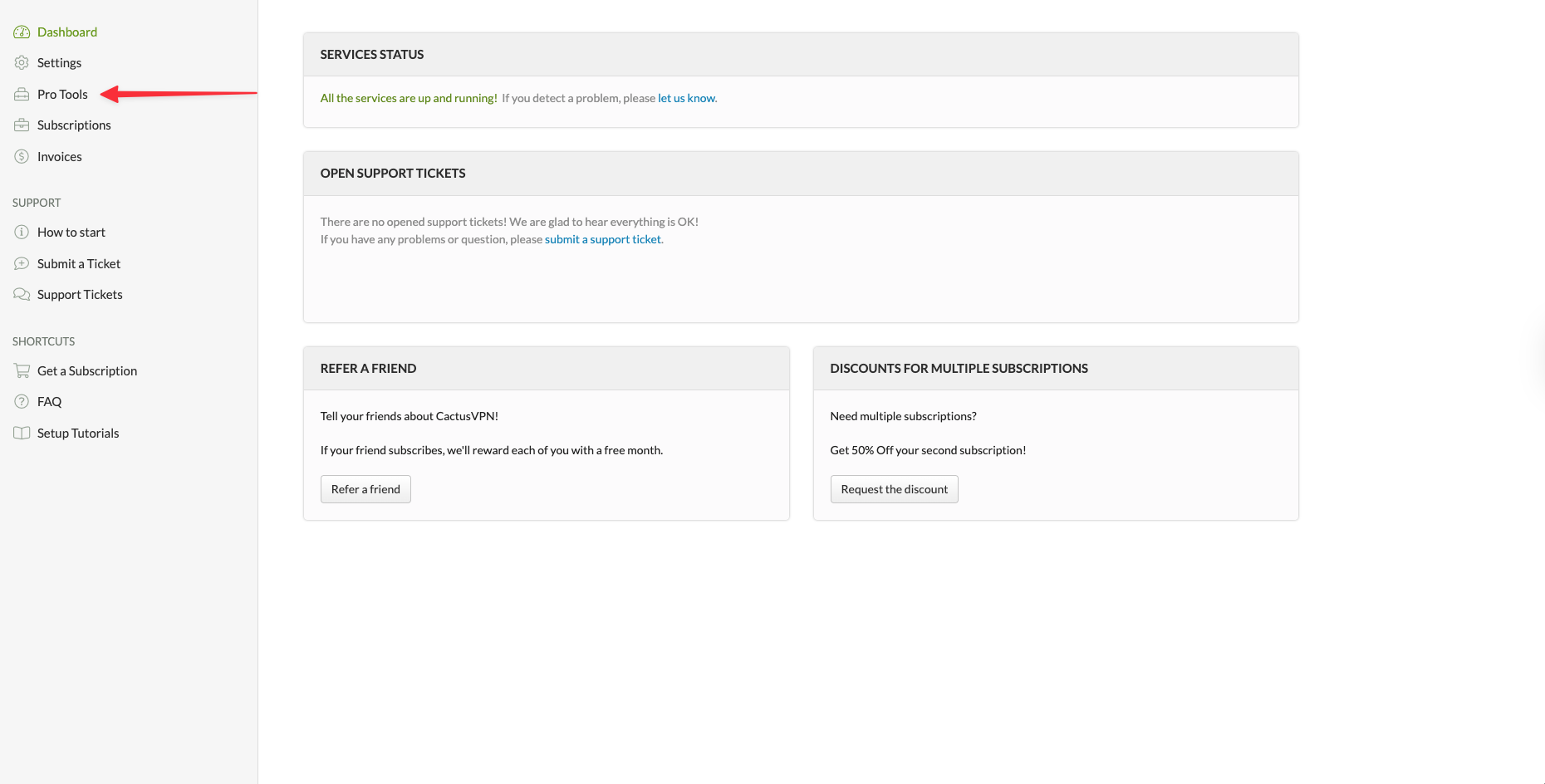
1. Log in to the CactusVPN client area and go to Pro Tools in the left sidebar menu.
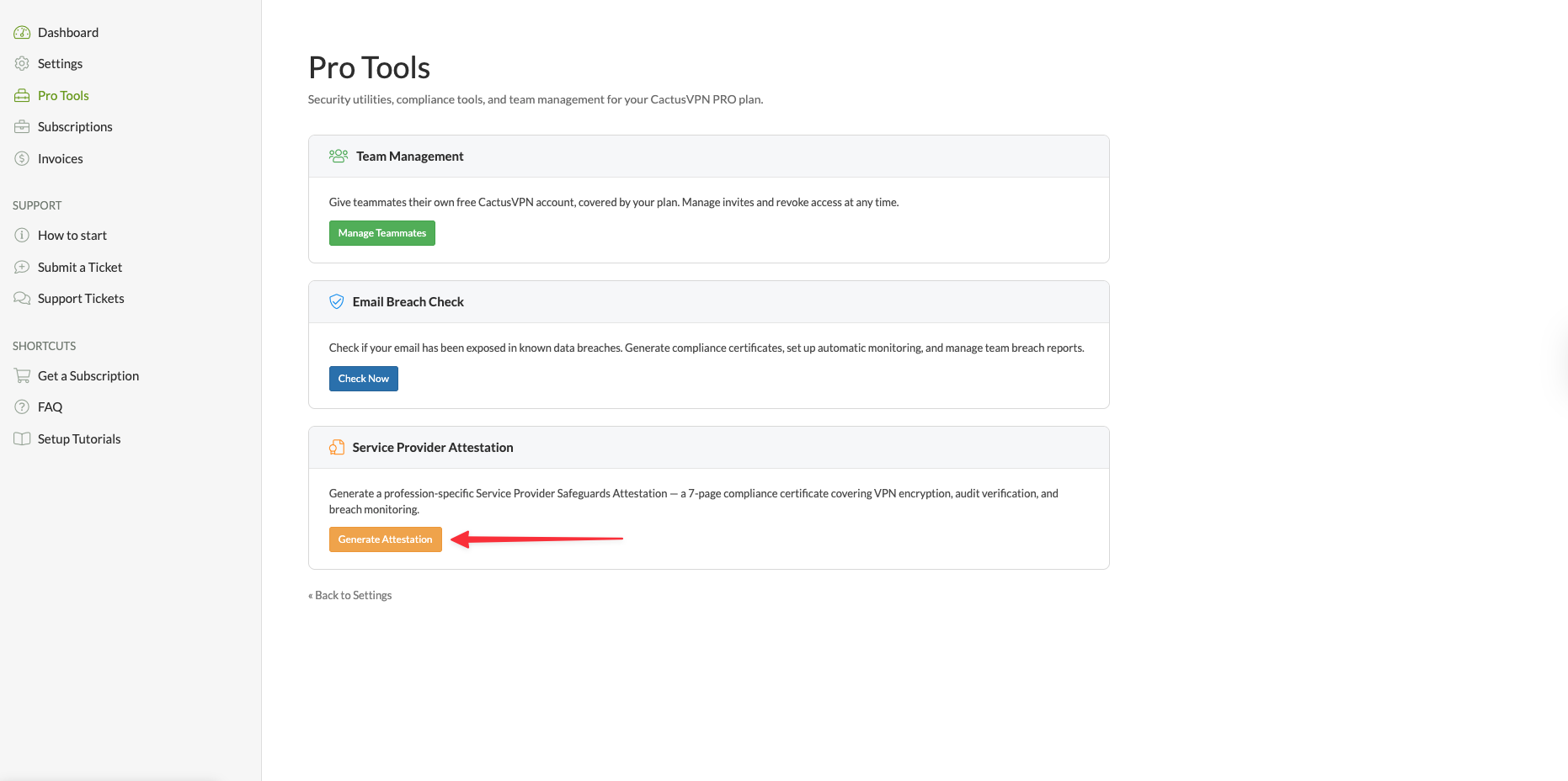
2. Find the Service Provider Attestation section and click the Generate Attestation button.
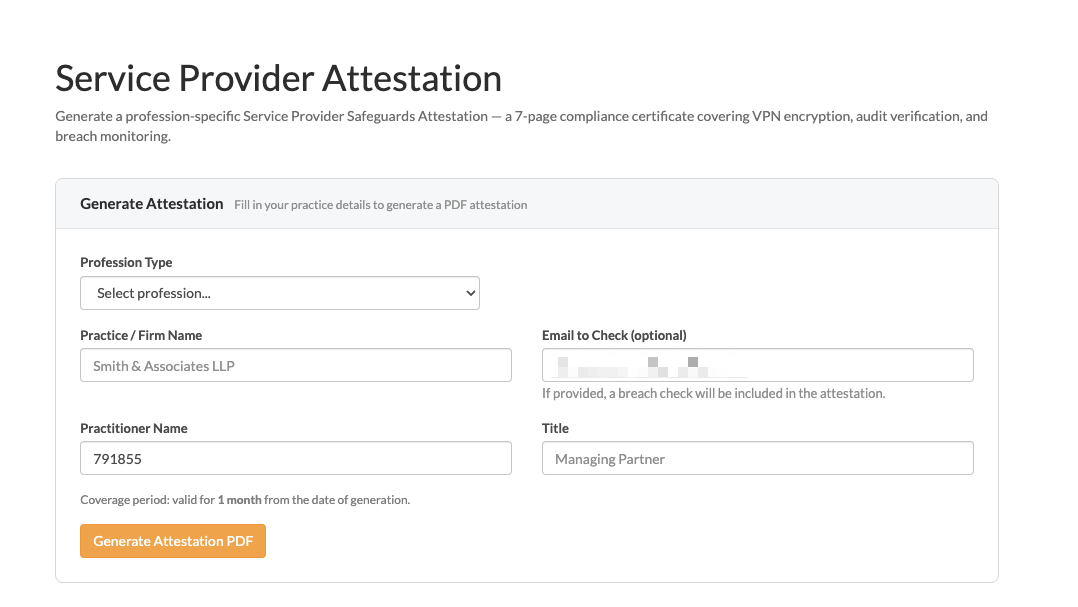
3. You will land on the Service Provider Attestation page. To generate your attestation, fill in the following fields:
Profession Type — Select your profession from the dropdown list.
Practice / Firm Name — Enter the name of your practice or firm.
Practitioner Name — Enter your full name.
Title — Enter your professional title, for example, Managing Partner.
Email to Check (optional) — If you provide an email address, a breach check will be included in the attestation document.
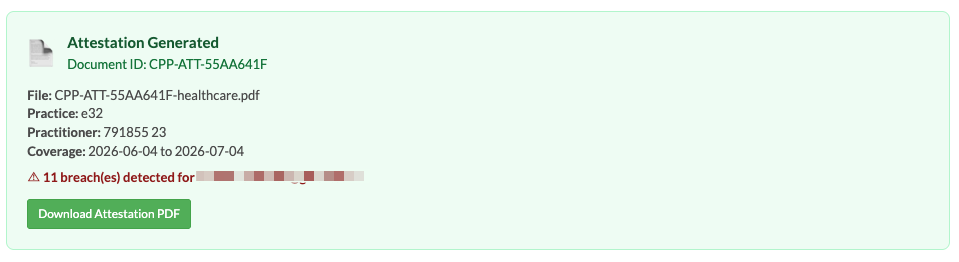
4. Once all the details are filled in, click Generate Attestation PDF. The certificate is valid for 1 month from the date of generation.
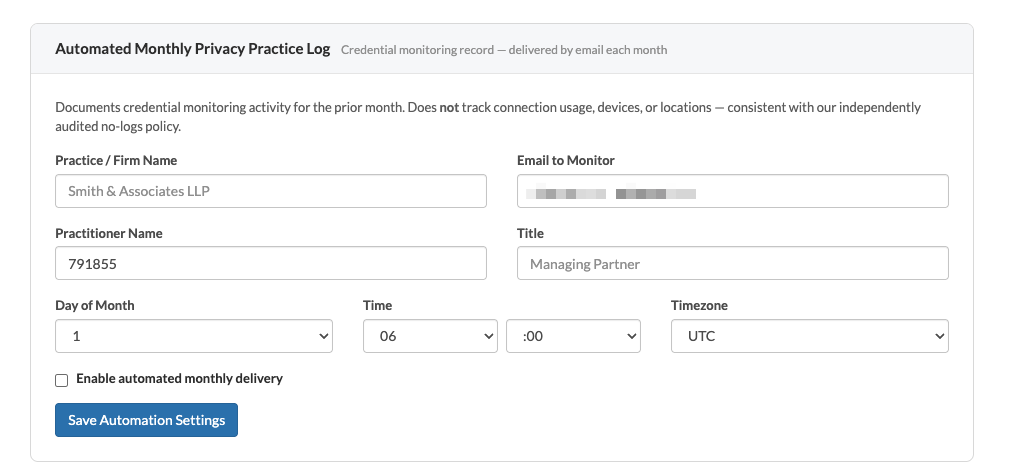
5. Below the attestation form, you can also set up an Automated Monthly Privacy Practice Log. This is a credential monitoring record delivered to you by email each month. It documents monitoring activity for the prior month and does not track connection usage, devices, or locations, in line with CactusVPN’s no-logs policy.
To set it up, fill in your Practice / Firm Name, Email to Monitor, Practitioner Name, and Title. Then choose the day of the month, time, and timezone you want the report delivered. Check the Enable automated monthly delivery box and click Save Automation Settings.
6. At the bottom of the page, you will also find Compliance Guides — downloadable reference documents tailored to your profession. For example, if you are in healthcare, you can download the Client Data Safeguards Compliance Guide — Healthcare, which covers HIPAA compliance implementation. Simply click Download PDF to save it.

VPN and Smart DNS Services
Protect online privacy, secure your connection and access blocked websites
Try CactusVPN For Free