How to Use Team Management in CactusVPN
1. Log in to the CactusVPN client area.
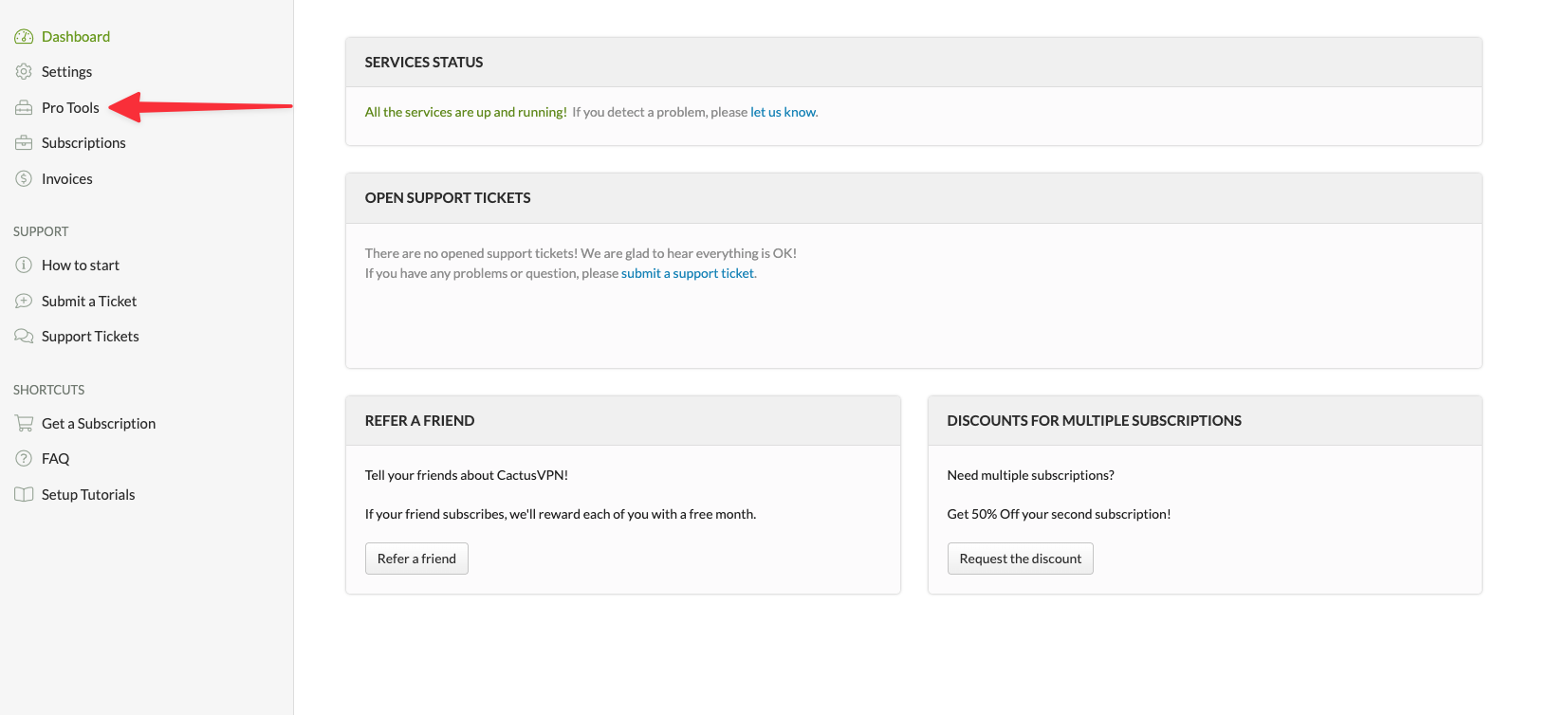
2. Once you’re in, go to Pro Tools in the left sidebar menu.
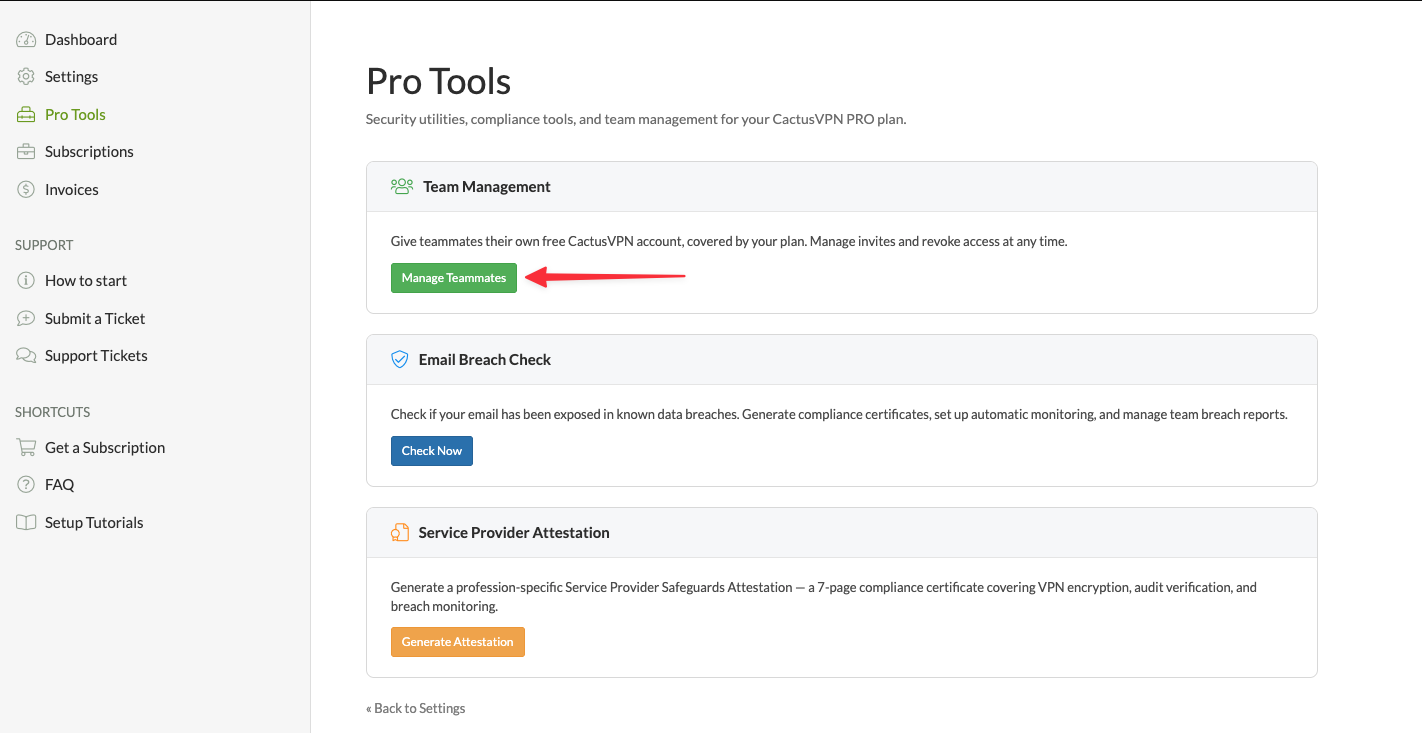
3. Inside Pro Tools, find the Team Management section and click the Manage Teammates button.
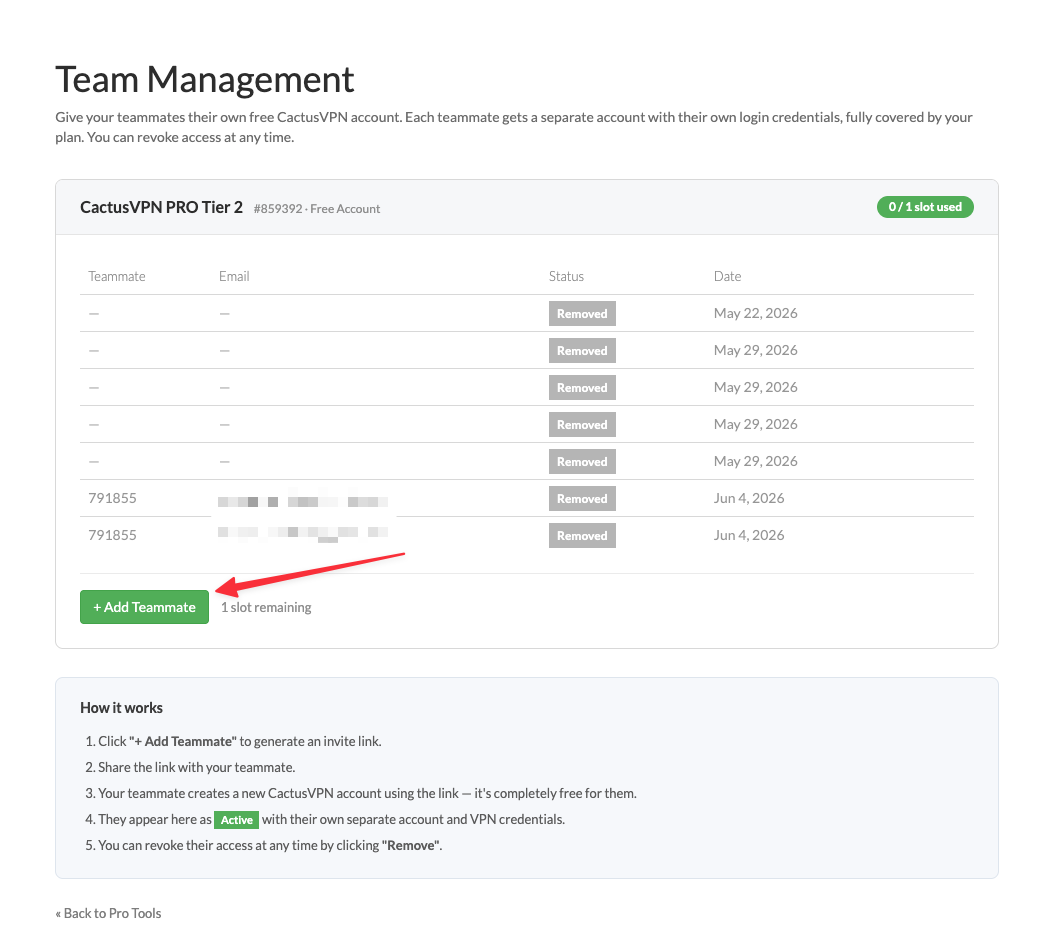
4. On the Team Management page, you will see your current plan and the number of teammate slots available. Click + Add Teammate to generate an invite.
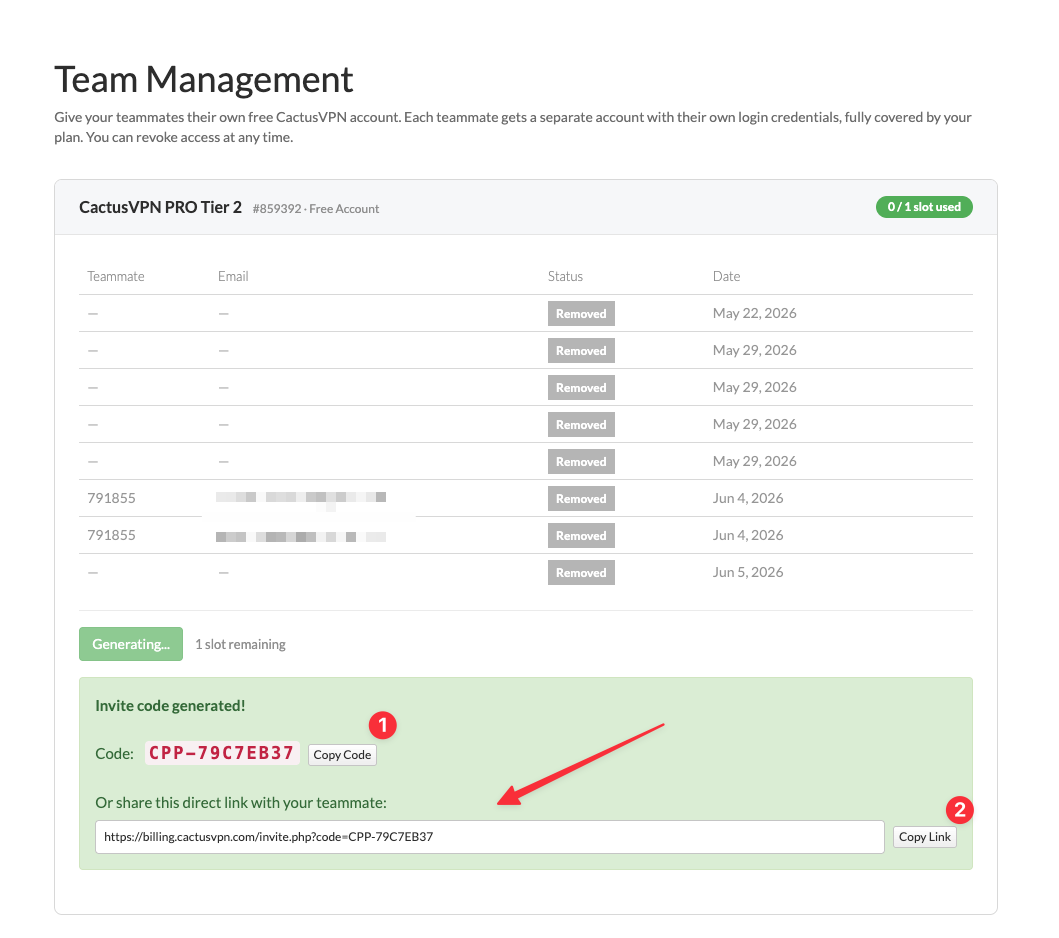
5. An invite code and a direct link will be generated. You can copy the full invite link and share it with your teammate directly.
6. Your teammate opens the link and creates a new CactusVPN account. It is completely free for them — the account is fully covered by your plan.
7. Once they sign up, they will appear in your Team Management table with an Active status. They get their own separate account and VPN credentials, independent from yours.
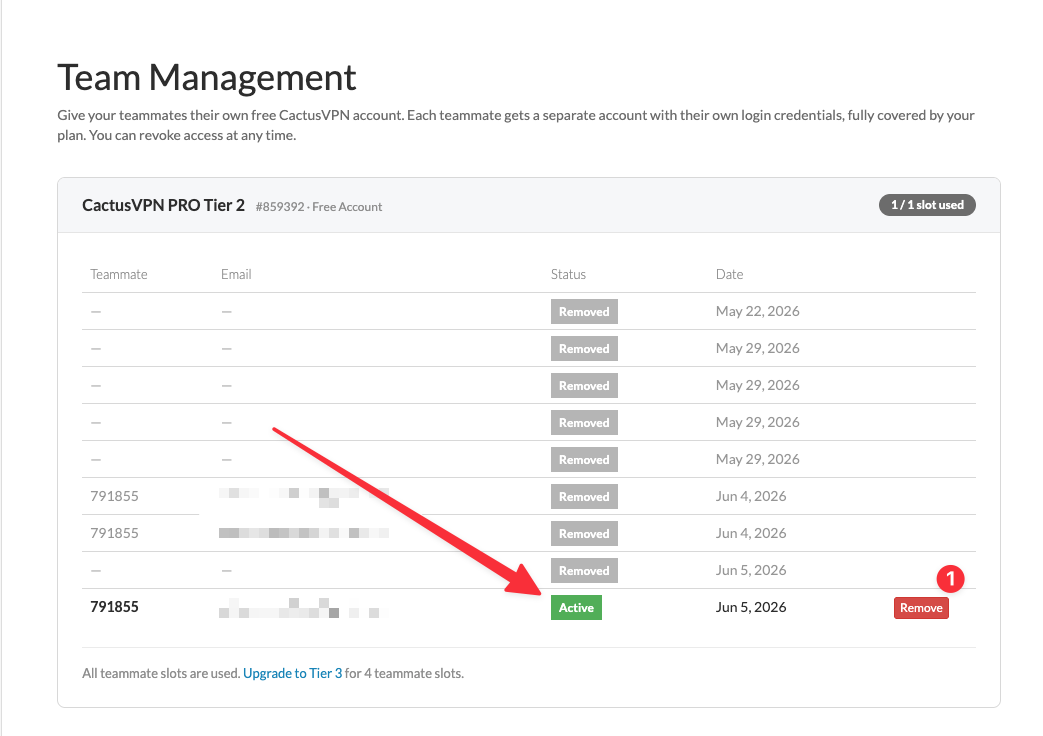
8. If you ever need to revoke access, simply click the Remove button next to their name. Their account will be deactivated immediately.
Note: Team Management invitation is available only on Pro Tier 2 and Pro Tier 3 plans. It is not available on Tier 1.
VPN and Smart DNS Services
Protect online privacy, secure your connection and access blocked websites
Try CactusVPN For Free