Cloud Converter for CactusVPN: Guide & Eligibility
Table of contents
What Is Cloud Converter
Cloud Converter is an addon tool included with CactusVPN 2‑year plans. It lets you convert and compress files securely in the cloud without installing extra software or relying on ad‑supported third‑party websites. Hosted privately by CactusVPN, it handles processing on our infrastructure to maintain performance and privacy.
Who Can Use It
- Available exclusively with 2‑year CactusVPN subscriptions.
- Not available on Annual or Monthly plans.
- Access is granted immediately after upgrading to the 2‑year plan. Your VPN and Smart DNS services remain unchanged.
How to Access It
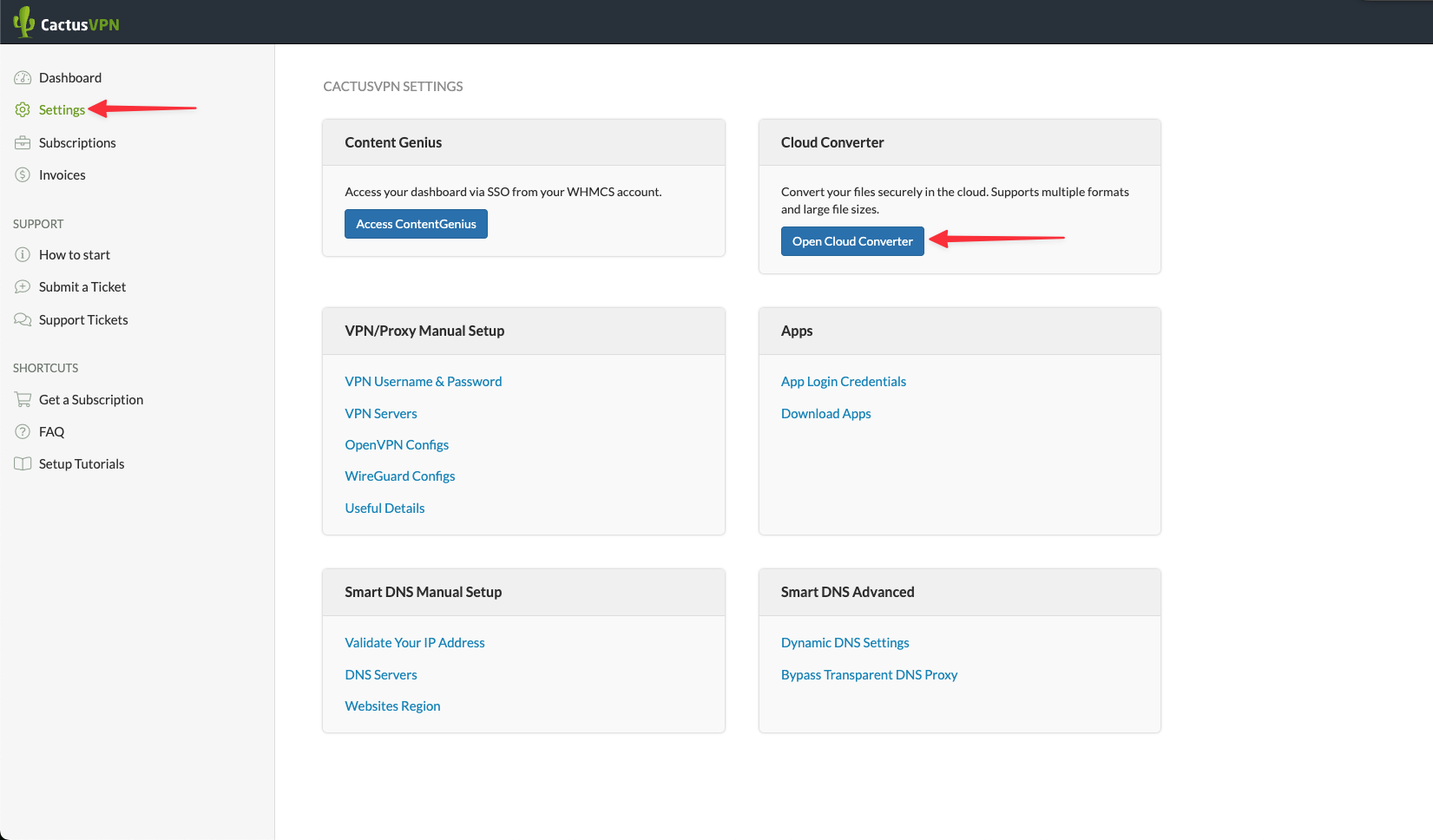
To open Cloud Converter, follow these steps:
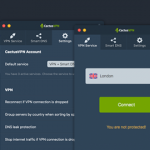
- Connect to any CactusVPN server using your VPN application.
- Log in to the CactusVPN Client Area.
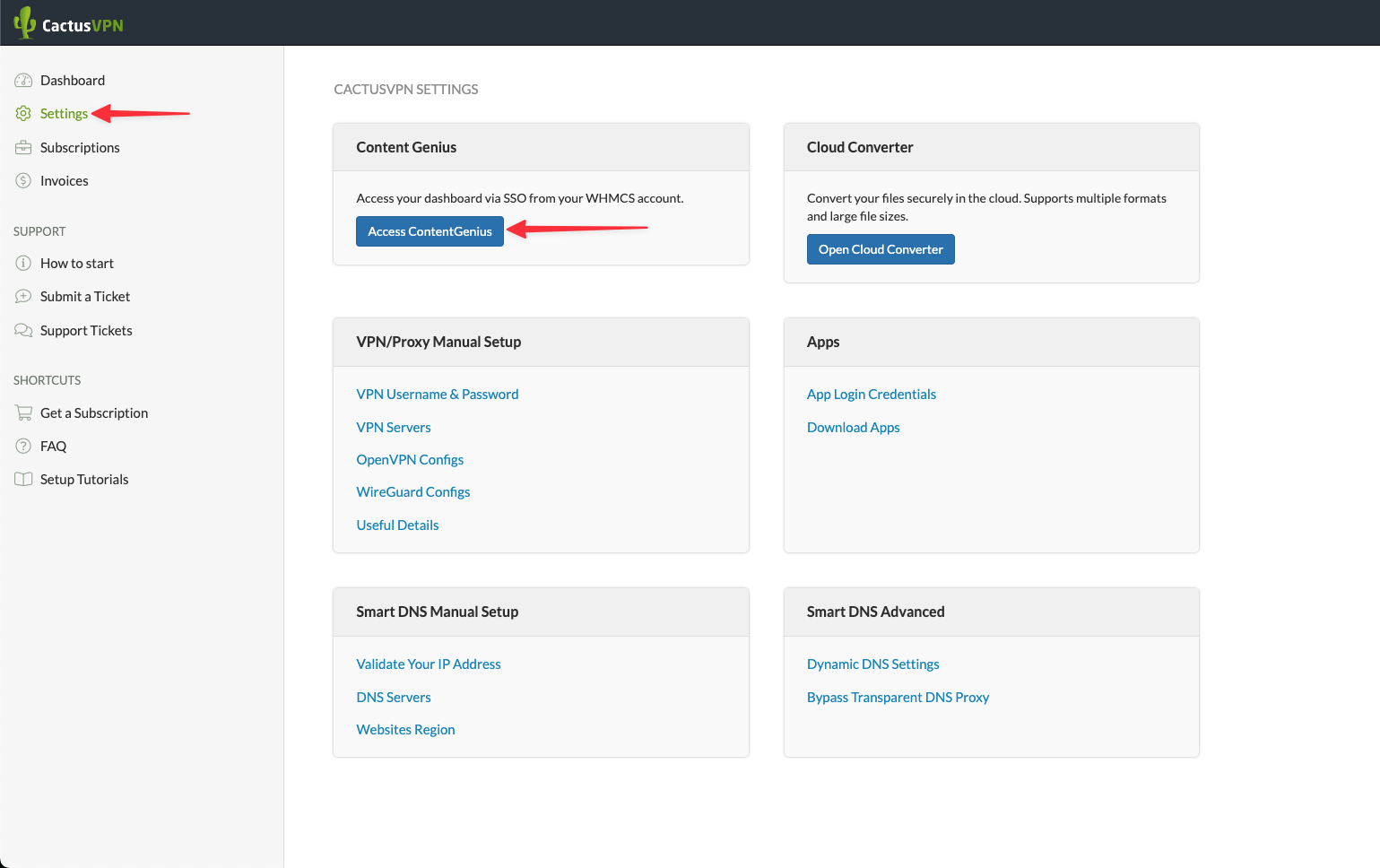
- From the left‐hand menu click on Settings.
- In the section labelled Cloud Converter click the button Open Cloud Converter.
How to Use Cloud Converter
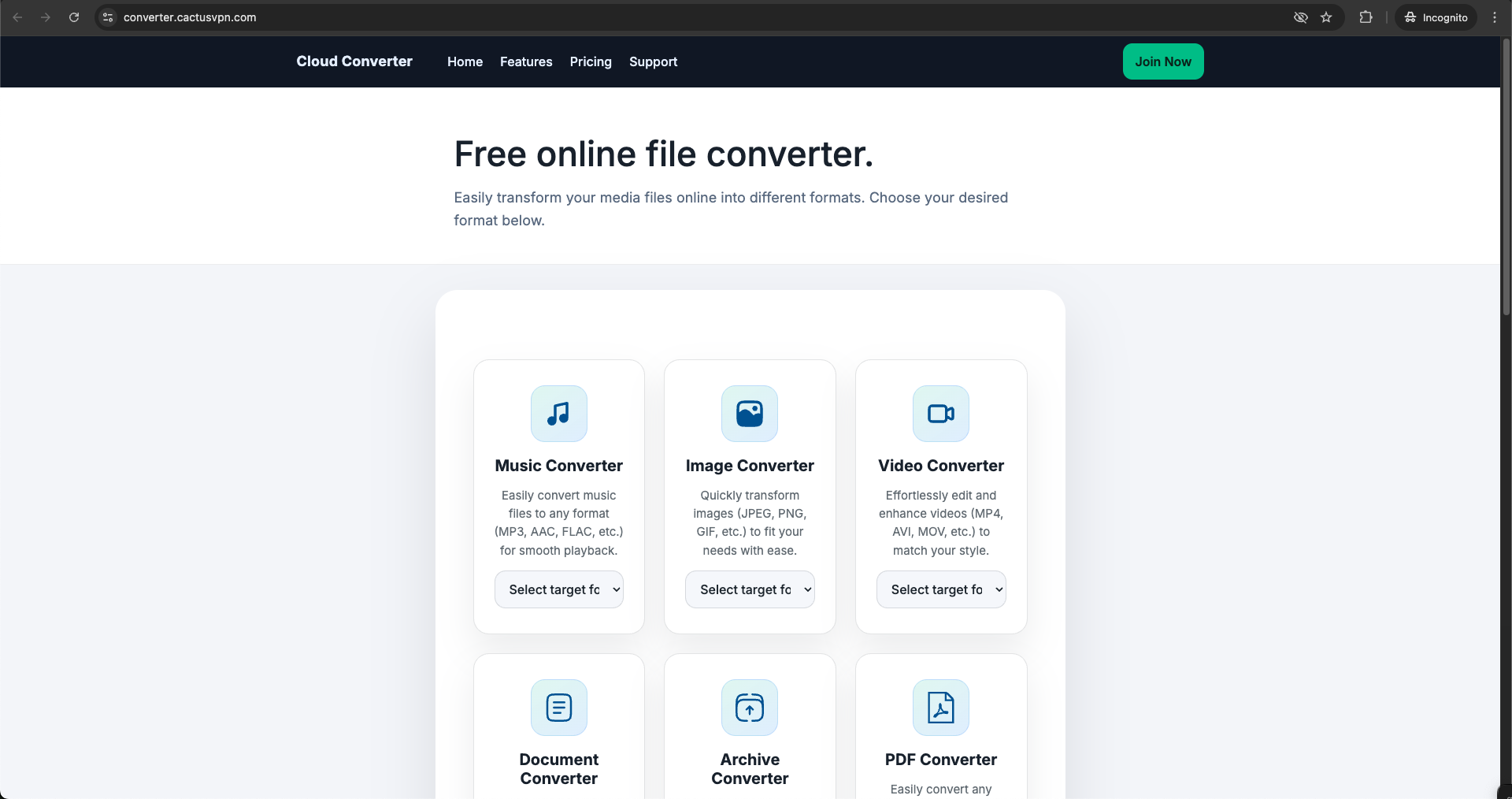
Once inside the dashboard, the layout is organised into clearly labelled tiles. Each tile corresponds to a function such as file conversion or compression. Below is a detailed walkthrough of how to carry out a typical task:
- Step 1 – Choose your function: Click either the “Convert” or “Compress” tile depending on your goal.
- Step 2 – Upload your files: Drag and drop one or more files (up to 10 files at once) or click “Select Files”. Each file can be up to 1 GB.
- Step 3 – Select output settings: After upload y,ou will see format options. Choose your target format. If you selected “Compress”, you may also see quality or size settings. Adjust if needed.
- Step 4 – Start the process: Click “Start” or “Convert”. You’ll see a progress indicator and estimated time for larger files.
- Step 5 – Download or save your results: When processing completes, you’ll see a download link. Click it to save to your device, or use any supported cloud storage export option.
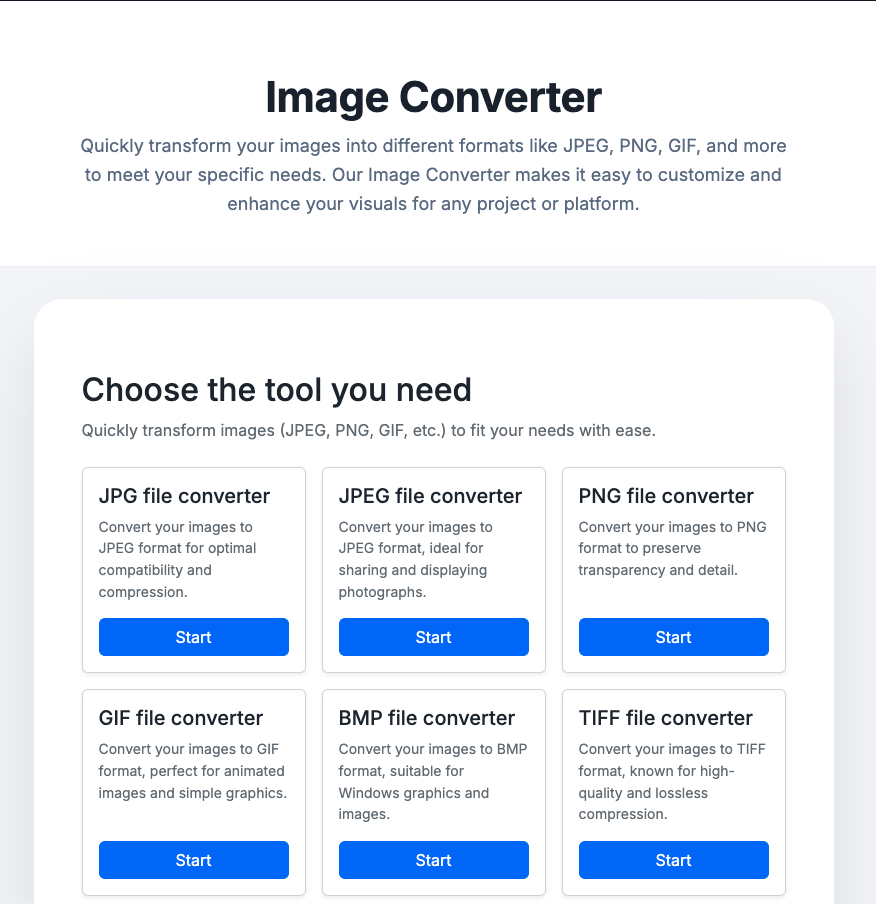
Example: Suppose you have four PNG images you want to convert to WebP and reduce file size: choose “Convert”, upload your PNGs, select “WebP” plus a quality slider (for example 80%), click “Start”, and download the output WebP files. The process for compressing a large PDF is similar: use “Compress”, upload the PDF, choose “Reduce File Size”, click “Start”, then download the smaller file.
Because everything runs through our private servers and you access it via the client area while connected to our VPN, you avoid ad‑heavy sites, extra software installs, and workflow interruptions.
Supported Formats
Cloud Converter supports hundreds of file formats across major categories, including:
- Audio: MP3, AAC, FLAC, WAV, M4A, OGG and more.
- Images: PNG, JPG, GIF, BMP, SVG, WEBP and more.
- Video: MP4, MKV, AVI, MOV, WEBM and more.
- Documents: PDF, DOCX, PPTX, XLSX, HTML, TXT and more.
- Archives: ZIP, RAR, 7Z, TAR.GZ and more.
Bulk tasks: up to 10 files can be processed simultaneously and each file can be up to 1 GB in size.
Privacy and Limits
- Private Hosting: All conversions run on CactusVPN‐controlled infrastructure.
- Auto Delete: Processed files are removed automatically after 24 hours.
- Unlimited Use: There is no cap on the number of conversions for eligible users.
- Access Control: Use requires an active VPN connection and login to your Client Area.
FAQ
Do I need to be connected to the VPN?
Yes. You must be connected to a CactusVPN server to access Cloud Converter.
Why don’t I see the “Open Cloud Converter” button?
That button appears only for users with an active 2‑year CactusVPN subscription.
Can I convert large files?
Yes. Each file can be up to 1 GB, and you can upload up to 10 files at once.
Can I buy the addon separately?
No. Cloud Converter is included only with the 2‑year plan and is not sold as a separate add‑on.